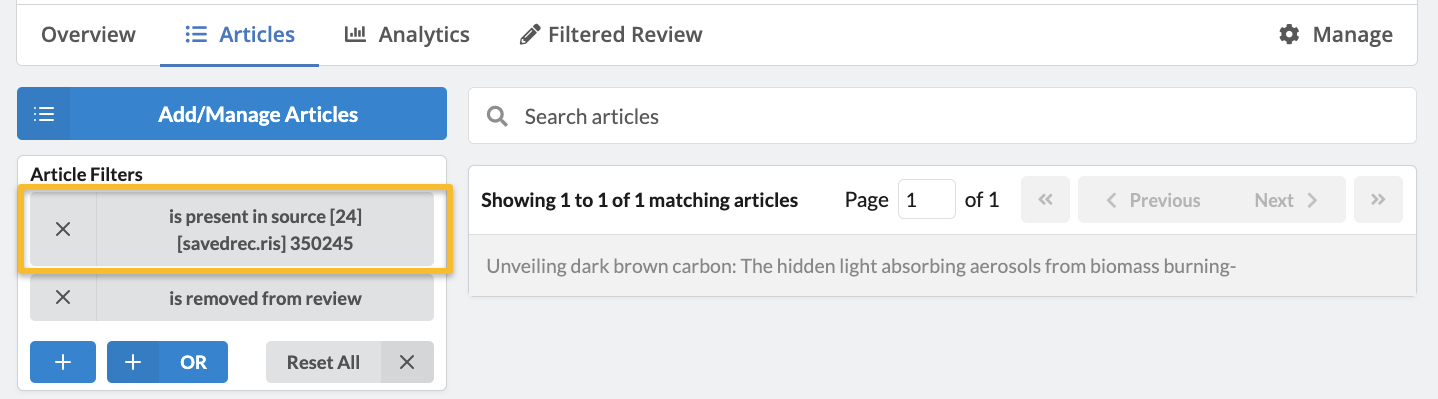
Removing documents from a Sysrev project
There are three ways to manage the removal of documents from a Sysrev project: deleting a document Source, disabling a document Source, or removing individual articles.
Deleting a document Source
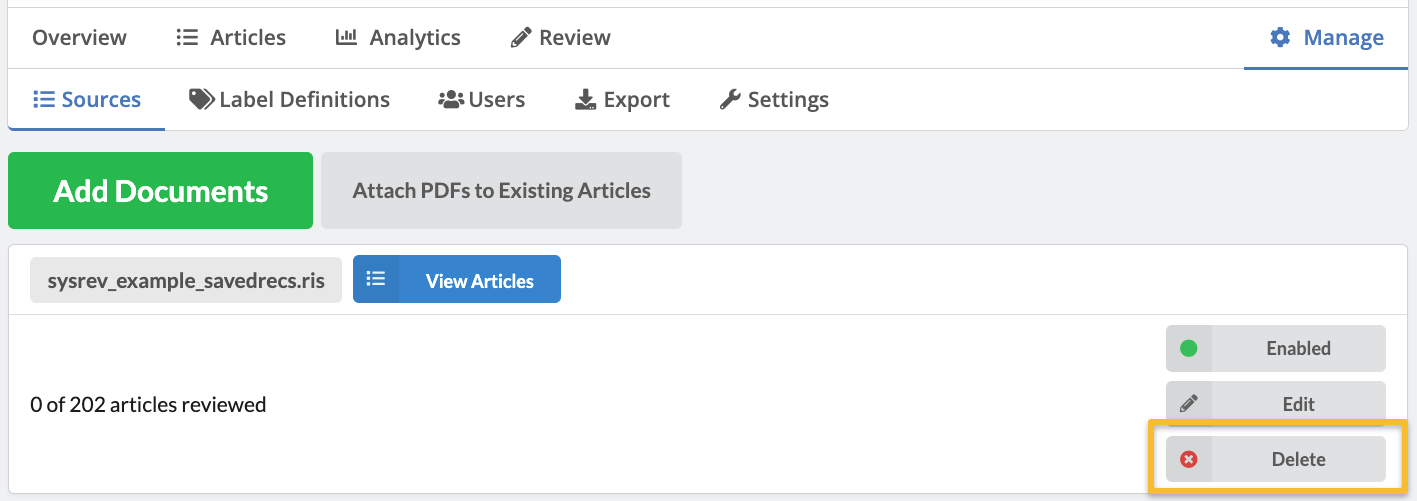
If you upload documents to Sysrev and have not done anything with those documents (i.e., have not reviewed or labeled them), you still have the option to delete the documents in bulk, removing them completely from the project.
To do so, go to the Manage -> Sources tab. Find the Source of documents and click Delete. The Delete option will not be present if any actions have already been taken on documents from this Source.
Disabling a document Source
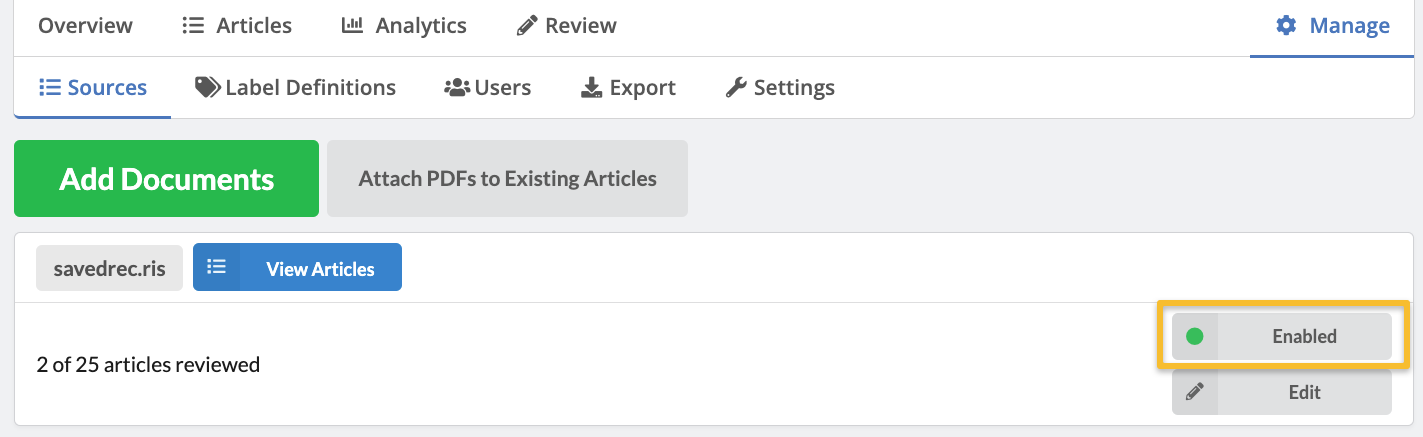
If some action (labeling, reviewing) has already been taken on any documents from a Source and deleting is no longer an option, you can still disable the documents in bulk from that Source. This will effectively remove these records from review, overview page visualizations, exports and the articles list.
To disable a Source, go to the Manage -> Sources tab. Find the Source of documents and click Enabled. This Source will be moved to the bottom of the page. You can add these documents back to the review by clicking the Disabled button.
Removing individual articles
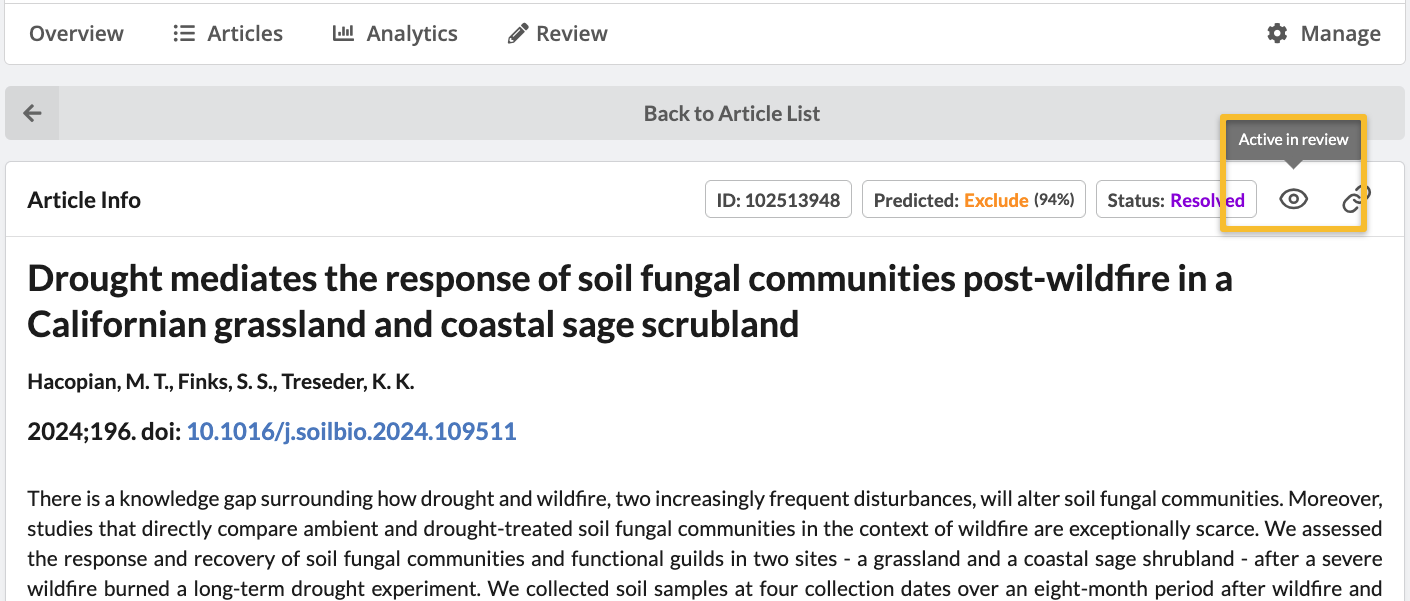
You can also remove individual articles from a review. Like disabling a Source, this will not permanently delete the articles, but rather removes them from the review tab, overview page visualizations, exports and the articles list. To remove an article, click on the article from the Articles tab. Click on the eye icon in the upper right hand corner of the Article Info. Click Remove in the pop-up box.
Note that these removed records can be added back at any time, or viewed, reviewed and exported separately. To add an article or articles back, go to the Manage -> Sources tab and find the source containing the removed article(s). Click on View where it indicates the number of removed articles.
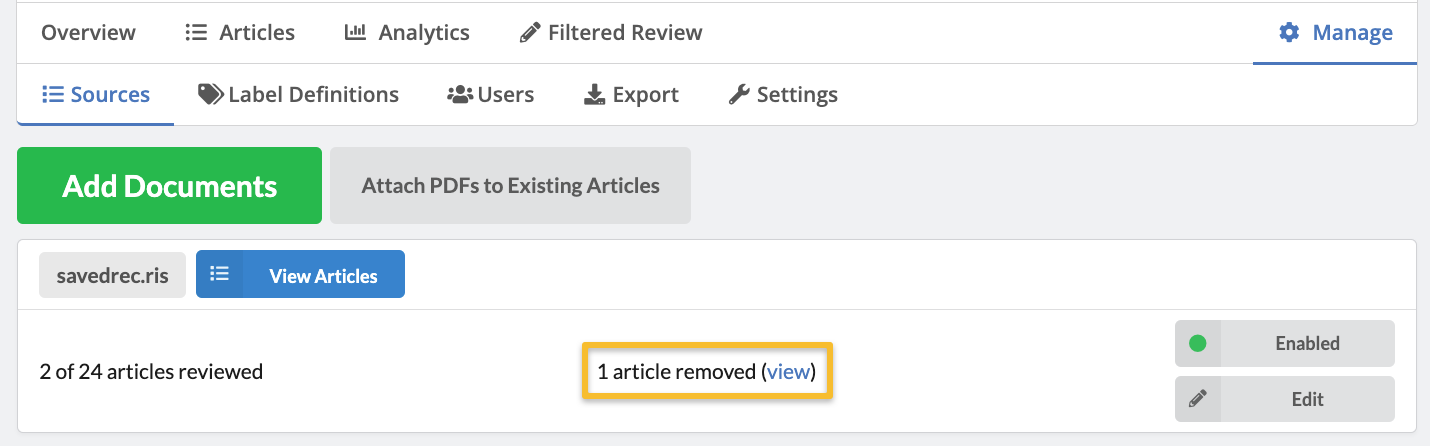
You will be taken to the Articles tab displaying the removed articles from that source. You can now use Filtered Review to review the article(s), or you can export the article(s).
To obtain a list of all removed articles in your project, regardless of source, simply remove the Source filter in Article Filters by clicking the X.