
Prefill label answers with the Auto-labeler
A common way of using the Auto-labeler is with the 'Prefill review answers' setting. When turned on, this setting will cause the Auto-labeler to fill in the label answers for a reviewer to verify, edit, and complete. This helps to speed up the screening and data extraction process by assisting you, the human reviewer, in your task.
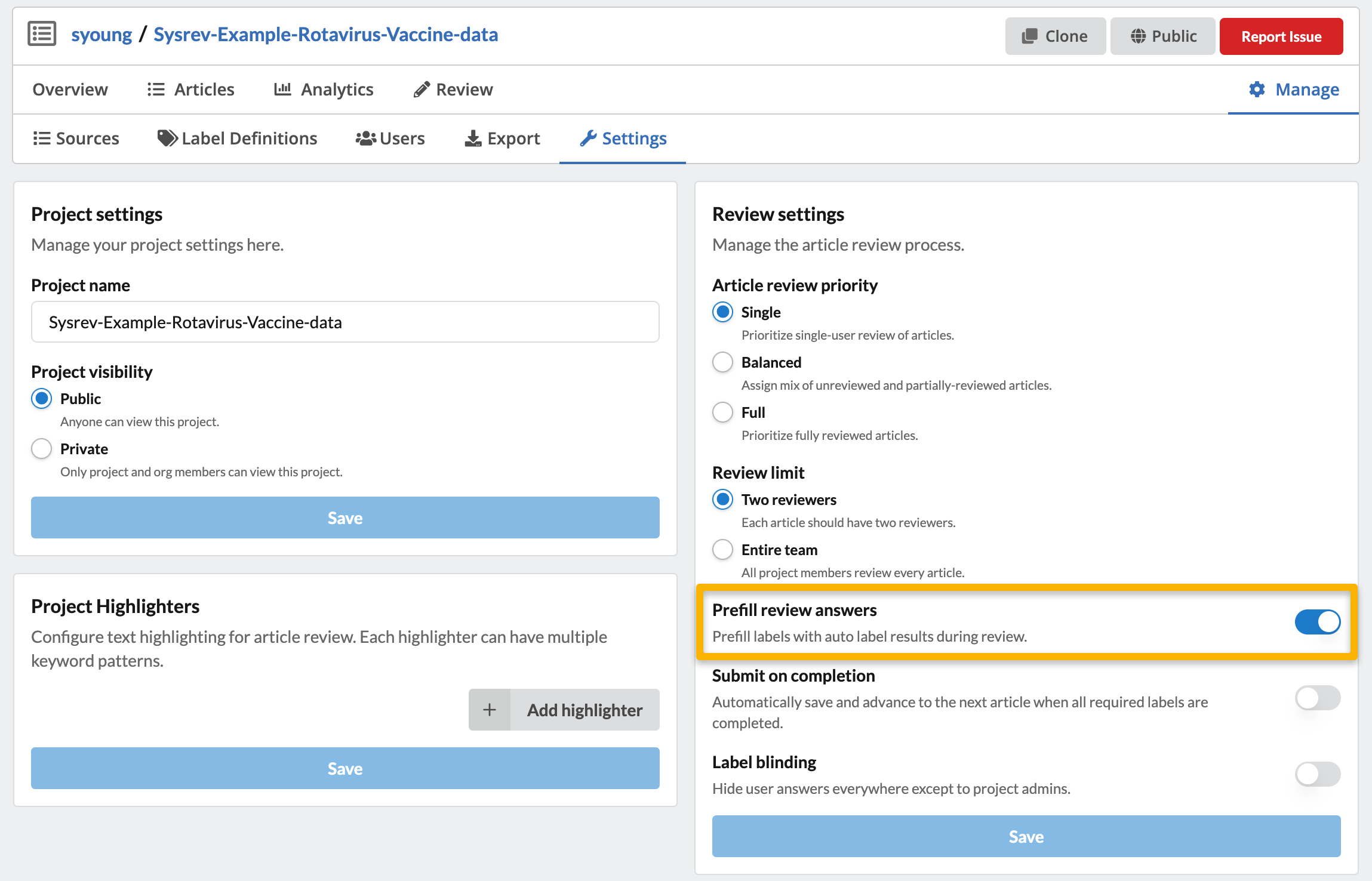
'Prefill review answers' is a project level setting. In other words, when turned on, every label activated for the Auto-labeler will be prefilled. You can access this setting under Manage -> Settings -> Review settings.
After an Auto-label run is initiated with this setting on, your can click on the Review tab and will see that the labels have been filled in and are fully editable. This includes group labels as shown in the image here.
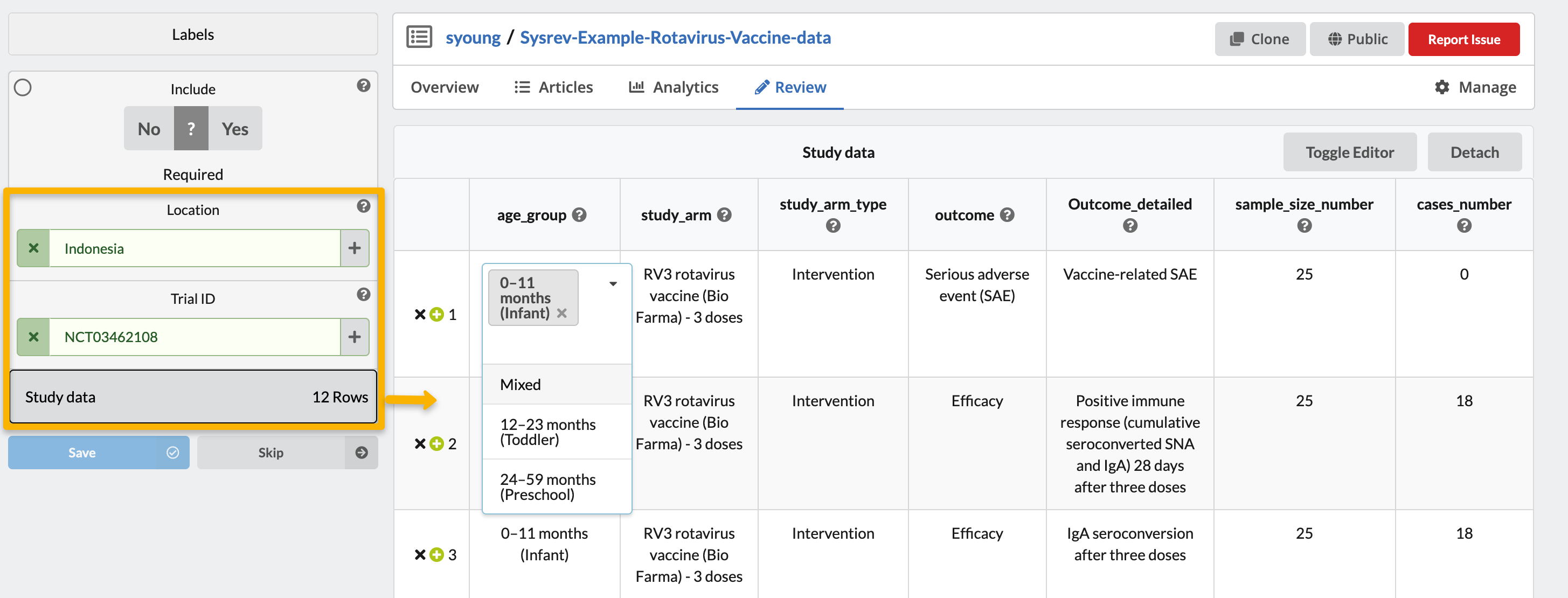
You can then make edits to the prefilled answers or add additional information. When satisfied with the label answers click Save. This will save all of the label answers as the human reviewer's labels. However, the original Auto-labeler answers will be preserved and are visible below the article window and in the exported project data.
Note that the 'Prefill review answers' setting can be toggled on and off after an Auto-labeler run to fill and unfill the Auto-labeler answers, without the need to rerun the Auto-labeler.